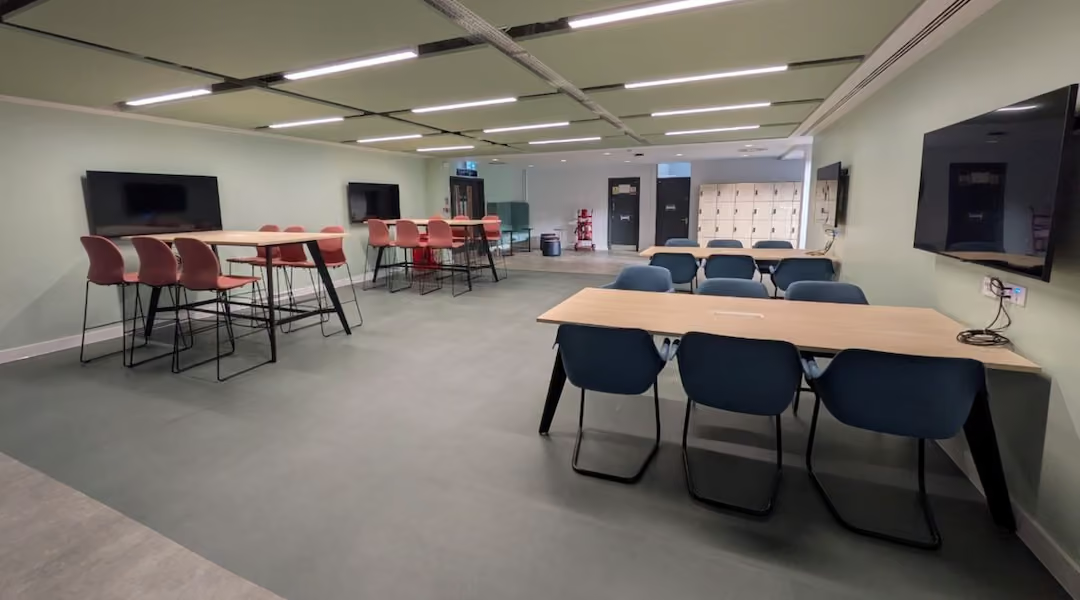
Common Ergonomic Mistakes in Small Offices
Seven common ergonomic mistakes in small offices — from non-ergonomic chairs and incorrect monitor placement to under-desk clutter and one-size furniture — silently drain productivity and drive injury costs. Ergonomic fixes reduce musculoskeletal injuries by 59%, cut absenteeism by 67%, and return $3 to $6 per dollar invested.
Post Summary
The seven mistakes are using non-ergonomic chairs without lumbar support, incorrect desk and monitor placement, poor keyboard and mouse positioning, insufficient movement breaks, inadequate lighting and screen setup, cluttered under-desk areas restricting leg movement, and one-size-fits-all furniture that does not accommodate varying body dimensions. Together these mistakes drive musculoskeletal disorders that account for 44% of workplace compensation claims at an average of $7,400 per incident. Ergonomic programs that correct these issues reduce musculoskeletal injuries by 59%, decrease absenteeism by 67%, and boost productivity by 10 to 25%. Every dollar spent on ergonomic improvements returns $3 to $6 in cost savings — making the fixes a financial as much as a health argument.
Non-ergonomic chairs — dining chairs, folding chairs, or basic task chairs without proper support — encourage rounded posture that flattens the spine's natural S-curve, increases lumbar disc pressure, restricts leg circulation, and can irritate the ulnar nerve through hard or poorly positioned armrests. The corrective features are adjustable seat height spanning 15 to 22 inches, proper seat depth leaving a 2 to 4 finger gap behind the knees, lumbar support adjustable to target the L3–L4 region, and 4D armrests adjustable in height, width, depth, and pivot. Breathable mesh backrests reduce visual bulk in small spaces while keeping users cool. High-quality task chairs with compact bases under 27 inches in diameter range from $450 to $1,000, with premium models carrying 12 to 15-year warranties that make them a long-term rather than a recurring cost.
Standard desks built at 29 to 30 inches suit very few users — shorter individuals elevate their shoulders to reach the keyboard while taller users hunch to see the screen, both creating trapezius and neck strain within hours. A monitor positioned too low forces head tilting that converts the natural 10 to 12-pound head weight into up to 60 pounds of pressure on the cervical spine — commonly called text neck. Correct positioning keeps elbows at 90 to 100 degrees with forearms parallel to the floor, the monitor top at or slightly below eye level, and the screen 20 to 40 inches from the face depending on size. A gas-spring monitor arm provides height, tilt, and depth adjustability and is particularly effective in small spaces and dual-monitor setups. Correcting monitor height alone reduces neck and shoulder discomfort by 35%.
A skilled typist makes approximately 18,000 keystrokes per hour — and even slight wrist misalignment causes tendons in the carpal tunnel to rub against bones and ligaments with every stroke. Over time this friction produces swelling, tingling, tendinitis, and tenosynovitis. In cramped small offices the keyboard is often pushed too close to the edge or off-center, and the mouse ends up on a different surface level and too far to the side — pulling the elbow outward and leaving the shoulder in a sustained strained position. Correct positioning places the keyboard directly in front of the user with forearms parallel to the floor, elbows at 90 to 110 degrees and close to the body, wrists straight, and the mouse immediately beside the keyboard on the same surface and at the same height. A keyboard tray corrects positioning when the desk is too high or shallow; an external keyboard and mouse paired with a laptop stand corrects the posture problem laptop-only setups create.
After approximately 50 minutes of continuous sitting, spinal disc hydration drops significantly, and sitting increases lumbar disc pressure by 20 to 40% compared to standing. By end of workday, sustained sitting can cause roughly 1% loss of standing height from spinal disc fluid loss. However, standing all day is not the solution — prolonged standing without movement breaks causes its own lower back pain and leg swelling. The 20-8-2 rule addresses this: sit for 20 minutes, stand for 8 minutes, and spend 2 minutes moving or stretching within every 30-minute cycle. Even a 2 to 3-minute walk rehydrates spinal discs. Height-adjustable desks reduce physical discomfort by 22% and boost productivity by 15%, but the movement habit is what produces the benefit — not the desk itself. Small office layouts should maintain 36 to 44 inches of clearance behind chairs to create a rollback zone that makes standing transitions physically easy.
Most small offices unknowingly make ergonomic mistakes that impact health and productivity. Poor seating, bad desk setups, and cluttered spaces can lead to back pain, eye strain, and fatigue, affecting focus and costing businesses money. Here’s what you need to know:
- Chairs matter: Non-ergonomic chairs lack lumbar support, causing back issues. Opt for chairs with adjustable height, seat depth, and armrests.
- Desk and monitor alignment: Incorrect heights strain the neck and shoulders. Keep screens at eye level and desks at proper heights.
- Keyboard and mouse placement: Misaligned peripherals lead to wrist and shoulder pain. Position them for neutral postures.
- Movement is key: Sitting or standing too long harms spinal health. Use the 20-8-2 rule: sit, stand, and move every 30 minutes.
- Lighting issues: Glare and poor lighting cause eye strain. Use layered lighting and position monitors to reduce reflections.
- Under-desk clutter: Crowded spaces force bad posture. Clear legroom and organize cables.
- One-size furniture: Fixed furniture doesn’t suit everyone. Adjustable desks and chairs improve comfort.
Fixing these issues doesn’t have to be costly. Simple adjustments like monitor risers, external keyboards, or better lighting can make a big difference. For small offices, ergonomic upgrades can boost productivity by up to 25% and reduce injury risks.

STOP Neck, Back, & Headache Pain At Work - Ergonomic Desk Set Up
Mistake 1: Using Non-Ergonomic Chairs
In many small offices, chairs are often an afterthought. Tight budgets and limited space lead people to settle for dining chairs or folding chairs, but here's the issue: these chairs aren't built for long hours of use. Without proper lumbar support, they encourage a rounded posture instead of maintaining the spine's natural "S" curve. Over time, this can result in chronic back pain, neck stiffness, and fatigue, all of which can drag down your productivity.
Think about this: office workers spend around 1,700 hours a year sitting in their chairs. Poorly designed seating can increase lumbar disc pressure and even restrict blood flow to your legs. And let’s not forget the armrests - hard or awkwardly placed ones can irritate the ulnar nerve, causing discomfort in your hands and fingers[7].
"Those small aches and pains that have either suddenly appeared or become aggravated may be tell-tale signs that the chair you've been sitting on for hours per day is not exactly designed for health or comfort." - Hilary Troia, President, Office Gallery [2]
How to Choose Better Seating
To avoid these problems, it's worth investing in ergonomic chairs designed with comfort and support in mind. Modern task chairs often feature compact bases (less than 27 inches in diameter), making them ideal for tight spaces. Look for models with retractable or height-adjustable 4D armrests that can tuck neatly under your desk.
When shopping for a chair, prioritize these features:
- Adjustable seat height: Between 15" and 22" to suit different desk heights.
- Proper seat depth: Leave a 2- to 4-finger gap between the seat edge and the back of your knees.
- Lumbar support: Adjustable to target the L3–L4 region of your lower back.
- 4D armrests: Height-adjustable to prevent strain on the ulnar nerve.
Breathable mesh backrests are also a smart choice for small offices - they help keep you cool and reduce visual clutter. High-quality task chairs typically fall in the $450 to $1,000 range[7]. Many premium models come with warranties lasting 12–15 years[8], making them a worthwhile long-term investment.
If you're near Boston, Office Gallery has a showroom where you can try out ergonomic chairs before buying. Their expert team can help you find the perfect match for your workspace and comfort preferences - a smart move since comfort is a personal experience that’s hard to judge from online descriptions[7].
Mistake 2: Incorrect Desk and Monitor Placement
Improper desk and monitor placement is another common ergonomic misstep. Most desks are built at a standard height of 29–30 inches, which rarely suits anyone perfectly. Shorter individuals often have to shrug their shoulders to reach the keyboard, while taller users end up hunching over to see the screen. Both situations create significant strain on the trapezius muscles and neck, and it doesn’t take long - just a few hours - for discomfort to set in.
A poorly positioned screen can be even worse. A low monitor forces you to tilt your head, which turns the weight of your head (typically 10–12 lbs) into as much as 60 lbs of pressure on your cervical spine. This is often referred to as "text neck." Using makeshift furniture can make these problems even worse, leading to more neck and shoulder strain. These physical stresses don’t just hurt - they also impact productivity and overall comfort, making proper desk and monitor adjustments essential.
"A desk set too high forces shoulder elevation and causes trapezius and neck strain within hours." - Megan Collins, Autonomous [10]
Studies show that correcting ergonomics can improve productivity by up to 25%, and 68% of workers identify desk height as a key ergonomic issue [5].
How to Set the Right Desk and Monitor Heights
The goal is to maintain a neutral posture: keep your elbows bent at 90–100 degrees, forearms parallel to the floor, shoulders relaxed, and eyes aligned with the top of your screen. The top of the monitor should be at or slightly below eye level, and the screen should sit 20 to 40 inches away from your face, depending on its size.
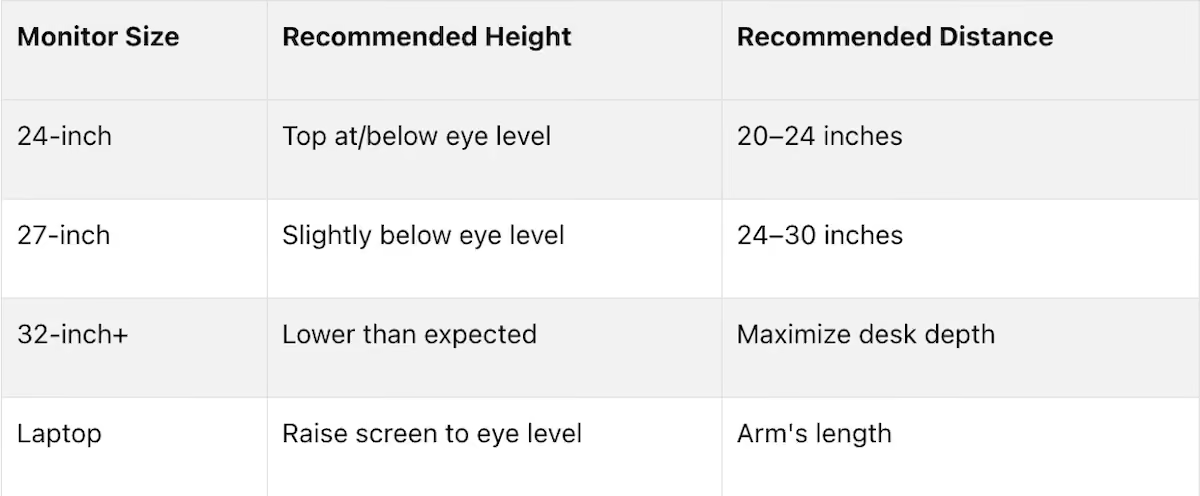
These guidelines can help you achieve a neutral, strain-free posture.
If your desk is too low, consider using desk risers. If it’s too high, raise your chair and use a footrest to keep your feet supported. For monitors, a basic riser (costing $30–$50) can help, but a gas-spring monitor arm offers more flexibility, allowing you to adjust height, tilt, and depth - ideal for small spaces or dual-monitor setups. Adjusting your monitor to the correct height can reduce neck and shoulder discomfort by 35% [5].
For laptop users, always pair a laptop stand with an external keyboard and mouse to keep the screen at eye level and your arms in a neutral position. If you wear bifocals or progressive lenses, lower your monitor by an extra 1–2 inches to avoid tilting your head back to see through the lenses [6][9].
In cities like Boston, where space can be tight, Office Gallery offers space-planning services to help you create an ergonomic setup tailored to your needs [7].
Mistake 3: Poor Keyboard and Mouse Placement
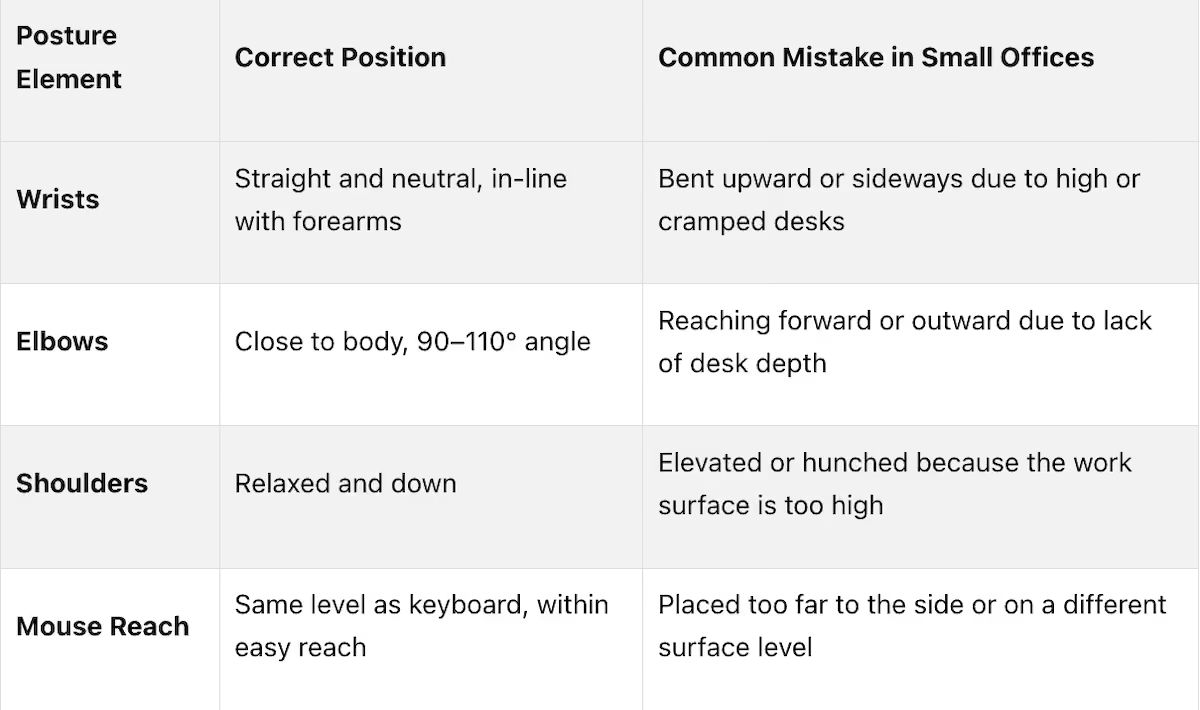
In small office setups, computers, keyboards, and mouses often end up in inconvenient spots, forcing users into uncomfortable positions. A cramped desk might push the keyboard too close to the edge or off-center, while the mouse gets placed even farther away. This setup can cause your elbow to drift outward, leaving your shoulder in a strained position for extended periods.
The impact of poor placement is more serious than it seems. A skilled typist can hit 18,000 keystrokes per hour [12]. If your wrists are even slightly misaligned - bent upward, downward, or sideways - this can cause the tendons in the carpal tunnel to rub against bones and ligaments with every stroke. Over time, this friction leads to swelling, tingling, and conditions like tendinitis or tenosynovitis [12][13]. The warning signs are subtle at first: a burning sensation in your hands, weaker grip strength, or stiffness that fades after a few minutes. Unfortunately, many people ignore these early symptoms until the discomfort becomes impossible to overlook.
"Working in awkward postures can irritate or strain the bone-tendon-muscle connections." - Occupational Safety and Health Administration [12]
Laptop users face even more challenges. Built-in keyboards and touchpads encourage cramped postures that strain the back, shoulders, and wrists. Using a laptop as your primary workstation without external peripherals is a quick path to repetitive strain injuries [6].
How to Position Your Keyboard and Mouse Correctly
Once you've adjusted your desk and monitor, the next step is to ensure your keyboard and mouse are positioned to support neutral arm and wrist postures. Here's the key: place the keyboard directly in front of you, aligned with your body. Your forearms should be parallel to the floor, and your elbows should stay close to your sides, forming a 90–110 degree angle [13][6]. Keep your wrists straight - avoid tilting them up, down, or sideways. The mouse should sit right next to the keyboard, on the same surface and at the same height, minimizing the need to reach or lift your arm.
"A keyboard tray that is too small can cause you to move the mouse to a position of the desk that requires you to reach... This pulls the elbow away from the body and can cause you to support your arm in an elevated position for an extended period of time." - Occupational Safety and Health Administration [12]
If your desk is too high or shallow, a keyboard tray can be a game-changer. It lowers the keyboard below desk level and brings it closer to your body, improving posture. For laptop users, combining a laptop stand with an external keyboard and mouse (a setup that typically costs $30–$50) can instantly fix both wrist and neck alignment [1]. Going wireless can also help in tight spaces, as it eliminates cable clutter that often forces peripherals into awkward spots [5]. And if your desk has a sharp or hard edge, consider adding a wrist rest or padding. Resting your forearms on a hard edge for hours can restrict blood flow and irritate nerves, leading to tingling in your hands [6][13].
Mistake 4: Not Taking Enough Movement Breaks
Fatigue at work isn’t just about mental strain - it’s also linked to staying in one position for too long, especially in small office setups. Compact spaces make every movement count, so taking regular breaks to move is crucial for staying comfortable and productive. Here’s why: after about 50 minutes of continuous sitting, spinal disc hydration drops significantly[15]. And sitting increases the pressure on lumbar discs by 20% to 40% compared to standing upright[15]. By the end of a workday, this can cause office workers to lose roughly 1% of their standing height due to fluid loss in their spinal discs[15]. Clearly, sitting for long periods without breaks takes a toll on spinal health.
But standing all day isn’t the solution either. As I-Min Lee, a Professor of Epidemiology at Harvard T.H. Chan School of Public Health, explains:
"Standing desks may not be that great because long periods of standing without taking breaks to move can lead to lower back pain and swelling of legs."[14]
What your body really needs is variety - frequent shifts between sitting, standing, and light movement. However, small workspaces can make these transitions tricky. If there’s less than 36 inches of clearance behind your chair, standing up often requires awkward movements, which can add to physical strain over time. VBU Furniture Lab captures this well:
"If movement takes no thought, posture takes no damage. Workspaces fail when movement requires negotiation - tight clearances, unstable bases, or awkward stand–sit paths quietly convert motion into strain."[17]
Clutter under your desk only makes things worse. Items like bins, tangled cables, and low drawers can limit your legroom, forcing you to stay in the same posture for too long and draining your energy[17].
Ways to Add More Movement to Your Workday
Breaking up static postures doesn’t have to be complicated. One effective strategy is the 20-8-2 rule: sit for 20 minutes, stand for 8 minutes, and spend 2 minutes moving or stretching - all within a 30-minute cycle. Even a quick 2–3 minute walk can help rehydrate your spinal discs[15]. Studies also show that height-adjustable desks reduce physical discomfort by 22% and boost productivity by 15%[3].
In smaller offices, optimizing your layout is just as important as building good habits. Aim for 36–44 inches of clearance behind your chair to create a "rollback zone", making it easier to stand and move without awkward maneuvering[17].
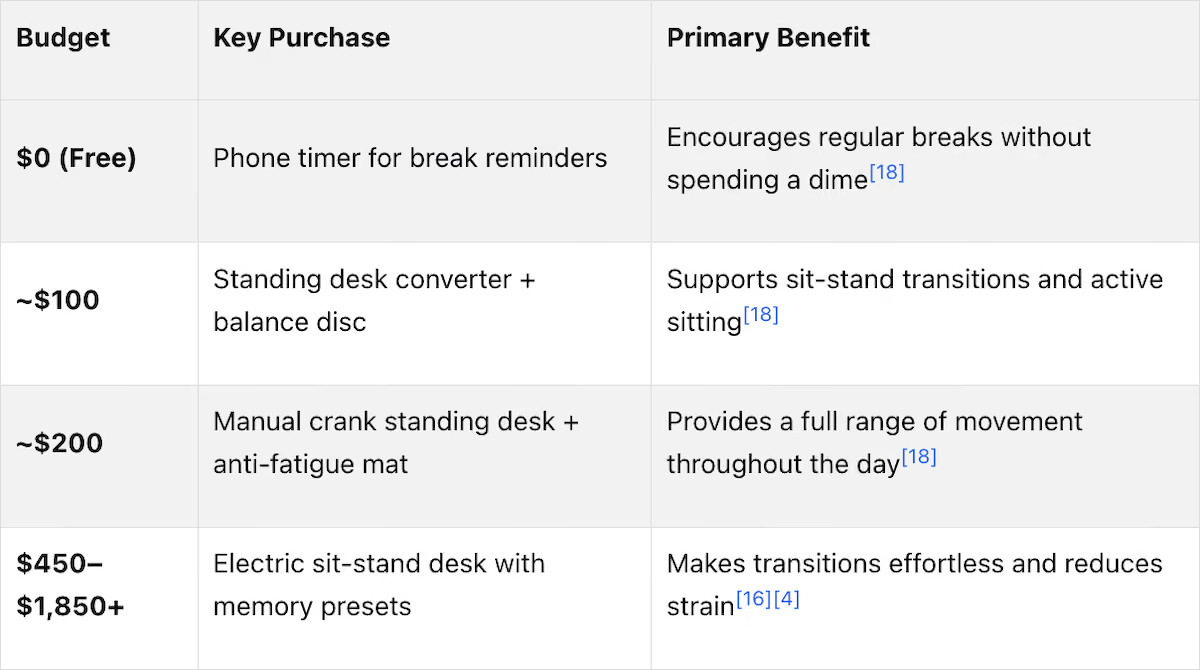
If investing in a full sit-stand desk feels like a big leap, there are budget-friendly alternatives. For instance, a standing desk converter (priced around $80–$120) can be a great starting point. Full manual crank desks typically cost $150–$200, while electric models with memory presets can range up to $1,850[16][4]. Another affordable option is a wobble cushion or balance disc (about $30–$60), which encourages subtle movement while seated, reducing the strain of staying still for too long. Even simple actions like walking during phone calls can make a difference - stand up and take a few steps while you talk.
Mistake 5: Poor Lighting and Screen Setup
Lighting and screen placement often get ignored in small office setups, but these details can make a huge difference in your daily comfort. Issues like glare from windows, poorly positioned monitors, or harsh overhead lights can lead to eye strain, headaches, and even blurred vision. In fact, making proper lighting adjustments has been shown to reduce these symptoms by up to 84% [22].
A frequent error is placing a desk directly in front of or behind a window. Both setups create glare, forcing your eyes to constantly adjust between the brightness of the window and your screen. As WorkSmart Hub explains:
"A screen that's too bright in a dark room or too dim in bright daylight makes your eyes work harder and can contribute to visual fatigue." [19]
Small offices often rely on a single overhead fluorescent light, which can cast harsh shadows and produce subtle flickering - both of which contribute to eye fatigue [19][20]. These issues highlight the need to rethink monitor placement and lighting strategies.
How to Improve Lighting and Screen Visibility
Here’s how you can make simple yet effective changes to reduce glare and visual strain. Start by positioning your monitor perpendicular to windows. If that's not possible, tilt the monitor upward by 10–20° to minimize reflections [19][20].
For lighting, layering works best. Use a combination of ambient ceiling lighting and a task lamp. Place the task lamp 16–24 inches above your desk at a 30–45° angle [22]. Aim for light levels of 300–500 lux for general work and 500–800 lux for detailed tasks [22]. When choosing color temperature, neutral white light (3,500K–4,000K) is ideal for focus, while warmer tones (2,700K–3,000K) are better for relaxing areas like break rooms [20][21]. If your work involves color accuracy, go for lamps with a Color Rendering Index (CRI) of 90 or higher [21].
Adjust your monitor's brightness to match the ambient light - think of it as being similar to the brightness of a white sheet of paper [19]. To avoid neck strain, increase the font size or zoom level instead of leaning closer to the screen [19]. And don’t forget the 20-20-20 rule: every 20 minutes, look at something 20 feet away for 20 seconds to relieve eye strain [19].
Fine-tuning your lighting and screen setup can make a noticeable difference in your comfort and productivity. If your office layout makes it tricky to achieve the ideal setup, Office Gallery International's space planning services can help you create a workspace that balances lighting, furniture, and screen positions for better performance.
Mistake 6: Cluttered Under-Desk Areas
The space under your desk often becomes a catch-all zone - a spot for your CPU tower, filing cabinet, power strip, or a mess of cables. While this might seem harmless, especially in small offices where every square inch counts, it can quietly wreak havoc on your posture. When your legs don’t have enough room to move freely, you’re likely to scoot forward in your chair, which rounds your lower back and shifts strain to your neck and shoulders [17]. Plus, tangled cables and overcrowded power strips can increase cognitive load by 19% and raise the risk of injury by 3.7 times [11]. This clutter not only limits movement but also disrupts the functionality of your workspace, creating additional ergonomic headaches.
How to Clear Under-Desk Space and Reduce Clutter
Start by evaluating your current under-desk setup. Sit at your desk and check if you can sit upright and move your legs freely without bumping into anything - whether it’s drawers, cables, or equipment [17]. If you can’t, it’s time for a cleanup. Ideally, your workstation should provide at least 20 inches of horizontal knee clearance for proper ergonomic comfort [23].
For cable management, don’t just tidy up - organize strategically. Use ventilated under-desk trays to lift power strips and adapters off the floor, freeing up legroom and improving airflow around devices. Without proper ventilation, bundled adapters can raise local temperatures by 14–22°F, which can reduce computer performance by as much as 31% [11]. If you’re using a height-adjustable desk, include "S-shaped" service loops in your cables. These loops allow cables to move with the desk without putting stress on ports [11]. For larger items like CPU towers, consider a mobile cart. It keeps the unit off the floor, protects it from dust, and opens up valuable leg space [23].
To further maximize your workspace, rethink storage. Opt for vertical solutions over horizontal ones. Wall-mounted shelves and compact mobile pedestals can hold files and supplies without encroaching on your under-desk area. Replacing a bulky 15-inch cabinet with a slim 6–8 inch low-profile unit can improve space efficiency by up to 60% [23]. Companies like Office Gallery offer smart storage solutions, such as mobile pedestals and modular designs from the Spacesaver Unbound Collection, so you can reclaim floor space without sacrificing accessibility.
Mistake 7: Using One-Size-Fits-All Furniture
Small offices often rely on a standardized setup - one desk, one chair, one monitor - for every employee. While this may seem efficient, it can create serious ergonomic problems. People vary greatly in body size, with a height difference of up to 7 inches between the shortest and tallest employees [24]. When furniture isn't adjustable, employees are forced to adapt to their workstations rather than the other way around, which can lead to discomfort and even injury.
For instance, a fixed seat pan that's too deep for shorter individuals can press against the back of their knees, restricting blood flow [3][24]. Similarly, chairs without proper lumbar support can cause slumping, which increases pressure on spinal discs [24]. These issues don't just cause physical discomfort - they also drain focus and productivity. Musculoskeletal disorders now account for 44% of workplace compensation claims, with each incident costing an average of $7,400 [7]. Non-adjustable furniture only amplifies these risks.
"Ergonomics is not a product but a process: a process of matching furniture... to the workers (and their work tasks) to reduce the hazards for injury and discomfort without undermining productivity." - Canadian Centre for Occupational Health and Safety [7]
How to Choose Furniture That Works for Everyone
To address these ergonomic challenges, upgrading to adjustable furniture is key. Here are some features to look for:
- Chairs: Opt for models with pneumatic seat height adjustment (15″–22″), adjustable seat depth (leaving a 2–4 finger gap behind the knees), and lumbar support targeting the L3–L4 region. High-quality, contract-grade chairs typically range from $450 to $1,000 [7], while more affordable options start at $199–$299 [25]. BIFMA-certified chairs are a solid investment, lasting 5–10 years of daily use compared to just 1–2 years for non-certified ones [3].
- Desks: Consider sit-stand desks with memory presets for quick adjustments. These range from $450 to $2,000+ and make it easy to switch between sitting and standing positions [24]. If reconfiguring takes more than two minutes, most people won't bother.
- Accessories: A monitor arm can help position screens at eye level, about 20–40 inches from the face. For shorter users, an adjustable footrest (around $99) can provide essential support when their feet don't comfortably reach the floor [25]. These small changes can make even a fixed-height desk more user-friendly.
The following table illustrates how work surface heights should vary based on the user's height, highlighting why a one-size-fits-all approach is problematic:
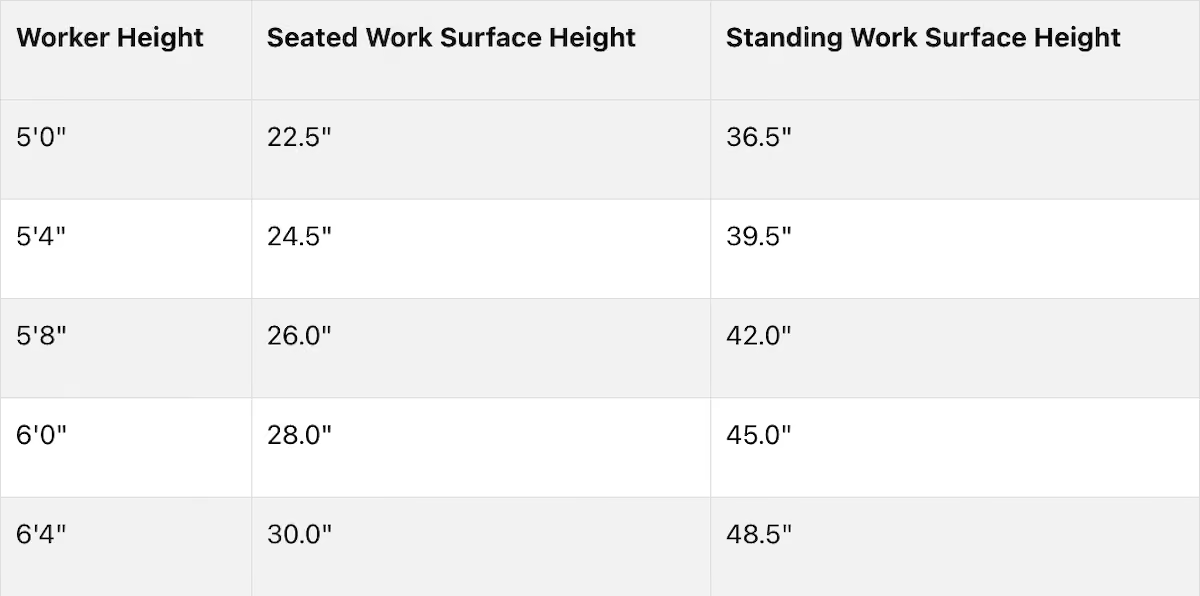
(Source: Office Gallery International [3])
For small offices, professional space planning services - like those offered by Office Gallery International - can help create ergonomic workspaces tailored to every employee's needs. Their on-site consultations, CAD drawings, and 3D planning have been helping businesses in the Boston area since 1989, ensuring both comfort and productivity in compact spaces.
Conclusion: Building a Better Small Office Workspace
The seven ergonomic mistakes outlined here - from using non-ergonomic chairs to poor monitor placement and cluttered under-desk areas - have one thing in common: they all disrupt comfort, focus, and productivity. The good news? Fixing these issues often requires just a few targeted changes.
Addressing these challenges can lead to measurable improvements. Studies show that ergonomic programs can reduce musculoskeletal injuries by up to 59%, decrease absenteeism by 67%, and boost productivity by 10%–25%. On top of that, every $1 spent on ergonomics can return $3 to $6 in cost savings [2]. For small teams, these benefits quickly ripple across the entire workflow [4]. After all, discomfort saps mental energy and hampers decision-making [3]. A well-organized workspace eliminates those barriers, allowing your team to focus on what matters most.
For small offices in the Boston area, Office Gallery offers services like on-site consultations, space planning, and full project management to help businesses make the most of their space. Melissa Berardi from a local law firm shared her experience: "Hilary... takes the time to be present on-site, take measurements and provide suggestions for optimizing small spaces." [26] This kind of personalized support is especially valuable when every square foot and furniture choice counts.
Simple adjustments - like investing in a proper chair, adding a monitor arm, or incorporating a sit-stand desk - can deliver quick wins. Start with the most impactful changes and build from there.
FAQs
What ergonomic fix should I focus on first with a tight budget?
Start by setting up your chair to provide proper support - this is often where discomfort starts. Make sure your feet are flat on the floor, your knees form a 90-degree angle, and your lower back is supported. If your chair doesn’t have built-in lumbar support, you can use a cushion or a rolled-up towel to fill the gap.
Once your chair is adjusted, check the height of your monitor. It should be at eye level to prevent neck strain. Finally, position your keyboard and mouse so they’re easy to reach without straining your wrists or shoulders. These simple tweaks can make a big difference in your workspace comfort and posture.
How do I know if my chair and desk are the wrong height for me?
Your chair might be too high if your feet are left dangling, or too low if you feel pressure under your thighs. Ideally, your feet should rest flat on the floor, with your knees bent at a 90-degree angle. As for your desk, it's likely at the wrong height if you find yourself raising your shoulders, hunching over, or sliding forward to type. The goal is to keep your shoulders relaxed and your elbows positioned at a 90- to 110-degree angle.
When should a small office get a professional space plan?
A well-thought-out space plan is crucial when experimenting with furniture layouts to ensure they align with your workflow, movement, and overall space requirements. Professionals go beyond basic sketches, using accurate CAD-based tools to refine layouts and enhance the likelihood of a successful setup. Office Gallery International provides services such as on-site consultations, detailed space planning, and comprehensive project management. Their goal is to design and deliver workspaces that prioritize both comfort and productivity, guiding you from the initial concept all the way to the final installation.
•••
Ready to transform your workspace? Contact us today to explore how our expert team can design a tailor-made solution that aligns with your brand and enhances productivity. From design inspiration to project management, we'll guide you through every step of the process to create an office space that fosters creativity, collaboration, and success. Let's embark on a journey to redefine your workspace together.
Key Points
Why do non-ergonomic chairs cause disproportionate harm in small offices and what chair specifications deliver the most impactful correction?
- 1,700 annual sitting hours making chair quality a compounding health variable — the duration of exposure to a poorly designed chair is not occasional; it is the dominant physical posture of the working day across nearly every working week of the year, making small daily biomechanical stresses accumulate into chronic conditions
- Lumbar disc pressure increase and blood flow restriction from chairs without proper support — chairs that encourage rounded posture flatten the spine's natural S-curve, concentrating disc pressure at the lumbar vertebrae while simultaneously restricting blood flow to the lower legs through seat pan pressure behind the knees
- Ulnar nerve irritation from hard or poorly positioned armrests — this specific injury pathway from armrest contact is overlooked in most ergonomic conversations but produces the hand tingling and finger discomfort that desk workers frequently attribute to keyboard use rather than seating
- Compact bases under 27 inches in diameter fitting small office footprints — ergonomic chairs designed for small office environments eliminate the floor space trade-off that has historically discouraged ergonomic investment in compact workspaces; the chair footprint objection is a solved problem
- 4D armrests with retractable or height-adjustable capability tucking under the desk — armrests that cannot be moved out of the way when not needed occupy floor and desk proximity space that small offices cannot spare; retractable 4D armrests eliminate this constraint
- 12 to 15-year warranty as the durability signal that converts purchase cost into investment — a $700 chair with a 12-year warranty costs less annually than a $200 chair replaced every 2 years; warranty length is the total cost of ownership calculation that makes premium ergonomic chairs the economically rational choice in small office settings
How do desk height standardization and monitor placement errors create the neck and shoulder strain that productivity research consistently identifies as a primary small office problem?
- Standard 29 to 30-inch desk height suiting very few users at their actual elbow measurement — desk height is the foundational workstation specification, and a standard that was not designed for any particular user produces compensatory postures — shoulder elevation for shorter users, forward hunching for taller users — that become chronic strain patterns within weeks of sustained use
- 10 to 12-pound head generating up to 60 pounds of cervical spine pressure when tilted forward — this biomechanical amplification from a low or near monitor position is the mechanism behind the neck pain that small office workers consistently report; correcting monitor height addresses the root cause rather than the symptom
- 68% of workers identifying desk height as a key ergonomic issue — this prevalence establishes desk height as the single most widely recognized ergonomic problem in office environments, making it the highest-impact correction available when space planning and furniture selection are done correctly
- Monitor perpendicular to windows eliminating the glare that forces compensatory screen positioning — workers who position monitors to avoid window glare often create neck-straining viewing angles in the process; perpendicular placement eliminates the glare without requiring posture compromise
- Monitor arm providing height, tilt, and depth adjustment that fixed risers cannot match — gas-spring monitor arms are particularly effective in small spaces because they recover desk surface area previously occupied by monitor stands and risers, creating usable desk depth that small offices typically lack
- Bifocal and progressive lens users requiring 1 to 2 inches of additional monitor height reduction — this specific accommodation is consistently overlooked in generic ergonomic guidance and produces the head tilting that users with progressive lenses develop to see through the correct lens zone; its correction is a simple monitor height adjustment
What keyboard and mouse positioning errors produce repetitive strain injuries and what corrective measures work for small office constraints?
- 18,000 keystrokes per hour making wrist alignment a high-frequency mechanical stress variable — at this repetition rate, even minor wrist deviation from neutral produces thousands of additional tendon friction events per hour; cumulative strain at this frequency produces clinical injury in weeks rather than years when wrist misalignment is persistent
- Early warning signs — burning sensation, weakened grip, morning stiffness — ignored until injury is established — by the time wrist and hand symptoms are addressed clinically, the condition has typically been developing for months; recognizing these early signals as ergonomic correction triggers rather than temporary discomfort is the intervention that prevents clinical injury
- Keyboard tray positioning keyboard below desk surface level correcting the primary wrist alignment failure — desk surface height is rarely the correct keyboard height for seated elbow position; a keyboard tray that lowers the keyboard to correct forearm-parallel positioning corrects the wrist extension that desk-surface keyboard placement produces
- Mouse immediately beside the keyboard on the same surface at the same height — mouse placement on a different surface level or too far to the side requires sustained shoulder elevation or elbow extension that accumulates into the rotator cuff and shoulder strain that remote mouse placement characteristically produces
- Laptop stand plus external keyboard and mouse at $30 to $50 correcting both wrist and neck alignment simultaneously — the laptop-only setup is the most common ergonomic failure in home and small office environments, simultaneously producing neck flexion from low screen position and wrist extension from keyboard at screen height; this $30 to $50 correction eliminates both
- Wireless peripherals reducing cable clutter that forces peripherals into awkward positions in small spaces — in compact office environments, cable length and routing frequently determine peripheral placement rather than ergonomic positioning; wireless peripherals remove this constraint and allow keyboard and mouse to be positioned correctly regardless of desk configuration
Why is movement variety more important than either sitting or standing alone and how should small offices be configured to make movement practical?
- Spinal disc hydration dropping significantly after approximately 50 minutes of continuous sitting — disc hydration is not a gradual accumulation over years; it is a within-session physical change that begins within an hour of sustained static sitting and is reversed by movement; the break schedule is a direct spinal health intervention
- 20 to 40% higher lumbar disc pressure from sitting versus standing upright — this pressure differential established by research is the biomechanical explanation for why prolonged sitting produces the end-of-day lower back fatigue and discomfort that workers experience as a normal feature of desk work rather than as a correctable ergonomic condition
- Prolonged standing causing its own lower back pain and leg swelling — the standing desk positioned as the corrective response to sitting is not itself the solution; variety in posture is the goal, and standing all day exchanges one static posture problem for another; the 20-8-2 rule operationalizes posture variety as a practical behavioral protocol
- 36 to 44 inches of rollback zone clearance making standing transitions physically effortless — if standing up requires navigating furniture, cables, or narrow clearances, the physical friction of the transition is sufficient to suppress the behavior; clearance behind the chair is the environmental design feature that determines whether the movement habit actually occurs
- Height-adjustable desk reconfiguration taking more than two minutes suppressing usage — manual crank desks that require sustained effort to adjust fall out of regular use quickly; the adjustability feature only delivers its health benefit when the friction of adjustment is low enough that transitions happen throughout the day rather than once at the start of a shift
- 2 to 3-minute walks rehydrating spinal discs as the minimum effective movement dose — this establishes that the movement breaks the 20-8-2 rule prescribes are not merely rest periods but active physiological interventions; even brief movement produces measurable spinal health benefit that extends comfortable sitting capacity in the following sitting period
How does under-desk clutter create ergonomic problems beyond the visible disorganization and what organization strategies deliver the greatest space and posture recovery?
- Leg movement restriction forcing forward chair positioning that rounds the lower back — the posture consequence of under-desk crowding is not simply discomfort from physical contact; it is the chain of compensatory posture adjustments that forward chair positioning triggers, producing rounded lower back loading that transfers to neck and shoulder strain
- 19% cognitive load increase from cable and clutter disorder — the productivity cost of under-desk clutter operates through visual and cognitive distraction channels independent of the physical posture consequences; the same disorganization that forces postural compromise also degrades the mental clarity available for focused work
- 3.7 times higher injury risk from tangled cables and overcrowded power strips — this risk elevation from cable disorder is specific and quantified; it reflects both tripping hazard and the unsafe equipment conditions that inadequate under-desk organization creates in environments where multiple power devices are in continuous use
- 14 to 22°F temperature increase from bundled adapters without ventilation reducing computer performance by 31% — the technology performance consequence of under-desk thermal buildup from improperly stored adapters is a direct productivity cost that is entirely preventable through ventilated under-desk tray installation
- S-shaped cable service loops as the sit-stand desk cable management requirement — height-adjustable desks in motion create cable stress at connection points unless service loops accommodate the movement range; cables routed without service loops progressively loosen connections and damage ports throughout the desk's operational life
- Slim 6 to 8-inch low-profile storage replacing 15-inch under-desk cabinets recovering 60% space efficiency — this specific substitution demonstrates that under-desk space recovery does not require eliminating storage; it requires right-sizing storage to the available clearance, a furniture specification decision that professional space planning makes straightforward
Why does one-size-fits-all furniture create systematic ergonomic failures and what adjustable furniture specifications address the full range of body dimensions in a small office?
- Up to 7-inch height difference between shortest and tallest employees making fixed furniture systematically wrong for a significant portion of any workforce — a single fixed desk and chair height optimizes for nobody in particular and forces the majority of employees into compensatory postures of varying severity; the ergonomic cost of standardization is distributed across the entire team
- Fixed seat pan depth restricting blood flow for shorter employees whose knee clearance is insufficient — a seat depth designed for average leg length presses against the back of shorter users' knees throughout the sitting period; this is not a minor fit preference but a circulation impairment that accumulates over 1,700 annual sitting hours
- Musculoskeletal disorders accounting for 44% of workplace compensation claims at $7,400 per incident — these claims are not random events; they are the predictable outcome of sustained mismatch between fixed furniture dimensions and varied human body dimensions, and adjustable furniture is the systematic prevention mechanism
- Pneumatic seat height adjustment spanning 15 to 22 inches accommodating users from 5 feet to 6 feet 4 inches — this range specification is not a convenience feature but the dimensional requirement for a chair to physically fit the users at either end of typical workforce height distribution
- BIFMA-certified chairs lasting 5 to 10 years versus 1 to 2 years for non-certified alternatives — the certification represents a durability commitment that directly affects the total cost calculation; small offices that purchase non-certified chairs to save initial cost replace them at a frequency that exceeds the cost of certified alternatives over a 5-year period
- Office Gallery International providing on-site consultations, CAD drawings, and 3D space planning for small office ergonomic configuration — serving the Greater Boston area since 1989 across Beverly, Marlborough, Plymouth, Quincy, and Waltham, with showroom access in Norwood for in-person chair and desk testing before purchase commitments are made